
You recorded family footage years ago on a Sony camcorder. The video looks fine on the camera. Then you copy the files to your laptop and discover a problem.
Nothing wants to play them.
Windows throws an error. Your phone refuses to open them. Uploading them to social media becomes frustrating. Even some video editors struggle with the files.
The culprit is usually the M2TS format.
M2TS files are common in Blu-ray discs and AVCHD camcorders. They preserve high-quality video, but they are not designed for universal compatibility. That’s why many people eventually ask the same question:
How do I convert M2TS to MP4?
The short answer is simple. Use a reliable converter, choose the correct output settings, and preserve the original video quality during export.
The longer answer is where most guides fall short.
What Is an M2TS File?
M2TS stands for MPEG-2 Transport Stream.
The format was developed for Blu-ray discs and AVCHD video recording systems.
Unlike MP4, which was built for broad compatibility, M2TS was designed for high-quality video storage.
An M2TS file can contain:
- H.264 video
- MPEG-2 video
- Dolby Digital audio
- DTS audio
- Multiple audio tracks
- Subtitle streams
- Metadata
This makes it ideal for camcorders and Blu-ray content.
However, it also creates compatibility problems on modern devices.
Why Convert M2TS to MP4?
Most users convert M2TS because MP4 works almost everywhere.
MP4 is supported by:
- Windows
- macOS
- Android
- iPhone
- Smart TVs
- YouTube
- Most video editors
M2TS often requires specialized software.
MP4 usually does not.
Will Converting M2TS Reduce Quality?
Not necessarily.
This is one of the biggest misconceptions online.
Quality loss depends on the conversion settings.
If your M2TS file already contains H.264 video, many tools can repackage the content into MP4 with little or no visible quality loss.
Problems occur when users:
- Lower bitrate too much
- Change frame rates unnecessarily
- Select aggressive compression settings
- Export at lower resolutions
The converter matters, but the settings matter more.
Before Converting: Check What’s Inside the M2TS File
An M2TS file is a container.
The actual video inside may use different codecs.
Common examples include:
- H.264 AVC
- MPEG-2
- VC-1
Many Blu-ray and AVCHD recordings use H.264.
If your source already uses H.264, conversion can be extremely efficient.
You often do not need heavy re-encoding.
Method 1: Convert M2TS to MP4 Online
Online converters work best for users who need a quick solution.
The process is simple:
- Upload the M2TS file.
- Select MP4 as the output format.
- Choose quality settings.
- Start conversion.
- Download the MP4 file.
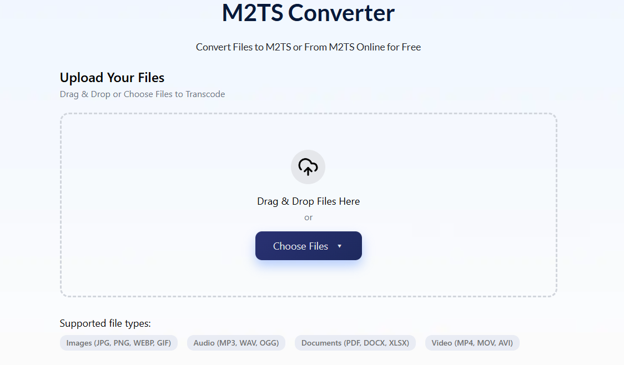
If you prefer a browser-based solution, Ahaconvert can be used as one option for converting M2TS files into MP4 without installing desktop software.
Online tools are ideal for:
- Small files
- One-time conversions
- Users with limited storage
- Basic playback needs
However, very large camcorder files may upload slowly.
Method 2: Convert M2TS to MP4 with FFmpeg
FFmpeg is one of the most powerful video tools available.
Many professional conversion applications actually use FFmpeg behind the scenes.
A basic conversion command looks like this:
m2ts → MP4
The advantage is complete control over:
- Bitrate
- Audio settings
- Codec selection
- Resolution
- Frame rate
FFmpeg is ideal for advanced users handling large video libraries.
Method 3: Use Professional Editing Software
If you already edit videos, your existing software may be enough.
Popular options include:
- Adobe Premiere Pro
- DaVinci Resolve
- VEGAS Pro
- Final Cut Pro
These programs provide additional control over export quality.
They are especially useful when preparing videos for:
- YouTube
- Broadcast delivery
- Client projects
- Professional archives
Best Settings for M2TS to MP4 Conversion
Many articles stop at the conversion step.
That is where the real work actually begins.
For General Playback
- Codec: H.264
- Resolution: Match source
- Audio: AAC
- Frame rate: Match source
For YouTube Uploads
- Codec: H.264
- Bitrate: 20–40 Mbps for 1080p
- Audio: AAC 320 kbps
For Long-Term Storage
- Codec: H.265
- High bitrate settings
- Preserve original resolution
For Video Editing
- ProRes
- DNxHR
- High-quality intermediate codecs
MP4 is not always the best editing format.
Many professionals use editing codecs first and create MP4 files only for delivery.
Why Audio Problems Occur During Conversion
This is one issue competitors rarely explain.
Many M2TS files contain multiple audio tracks.
A Blu-ray rip might include:
- English audio
- Commentary track
- Surround sound mix
- Alternate language tracks
Some converters only export the first audio stream.
Users assume the conversion failed when the real problem is audio-track selection.
Always verify:
- Audio channels
- Language tracks
- Surround sound settings
before exporting.
How Large Are M2TS Files?
File size depends on recording quality.
Typical examples include:
| Recording Type | Approximate Size |
|---|---|
| 1 Hour AVCHD 1080p | 10–15 GB |
| 1 Hour Blu-ray Source | 15–30 GB |
| High-Bitrate Professional Recording | 30 GB+ |
Large files are another reason users choose MP4.
MP4 can reduce storage requirements significantly while maintaining excellent quality.
Common M2TS Conversion Mistakes
Changing Frame Rate
A 29.97 fps source should usually remain 29.97 fps.
Changing it can introduce motion artifacts.
Lowering Bitrate Excessively
Many users prioritize small file size.
The result is blurry footage.
Ignoring Audio Tracks
Multiple audio streams are common in M2TS files.
Verify them before exporting.
Choosing the Wrong Codec
H.264 remains the safest choice for compatibility.
Which M2TS Converter Is Best?
The answer depends on your needs.
| Tool | Best For |
|---|---|
| Ahaconvert | Fast browser-based conversion |
| FFmpeg | Advanced users |
| Premiere Pro | Professional editing |
| DaVinci Resolve | Professional workflows |
| HandBrake | Free desktop conversions |
A dedicated M2TS Converter should preserve video quality, maintain audio synchronization, and support large source files.
The right choice depends on your workflow rather than the converter itself.
Frequently Asked Questions
Can I convert M2TS to MP4 without losing quality?
Yes. If you maintain the original resolution, frame rate, and bitrate, visible quality loss can be minimal.
Why won’t my phone play M2TS files?
Most mobile devices prioritize MP4 support. M2TS was designed for Blu-ray and AVCHD systems.
Is MP4 smaller than M2TS?
Usually yes. MP4 often delivers similar visual quality with smaller file sizes.
Does converting M2TS remove multiple audio tracks?
Not always. However, some converters export only the primary track unless configured otherwise.
What is the fastest way to convert M2TS to MP4?
For occasional conversions, browser-based tools such as Ahaconvert provide a quick solution. Larger projects often benefit from desktop software or FFmpeg.
The Real Goal Isn’t Conversion
Most people think the goal is converting M2TS to MP4.
It isn’t.
The goal is preserving the footage while making it easier to use.
That means maintaining video quality, keeping audio intact, matching frame rates, and selecting the correct codec for your intended use.
Whether the footage came from a Blu-ray disc, an AVCHD camcorder, or an older archive, a reliable M2TS Converter and the right export settings can make the difference between a flawless conversion and hours of frustration.
 Hamza
Hamza
 Rizwan Aslam